Voice & Language Configuration Guide
Configure your AI agent’s voice, language support, and advanced audio settings for the best caller experience.
Overview
Flowyte’s IVA Builder offers comprehensive voice and language configuration, allowing you to:
- Select from dozens of professional AI voices
- Enable multi-language support across 40 languages for global audiences
- Configure automatic language detection and switching
- Fine-tune voice characteristics for your brand
- Adjust speaking speed and response timing
How Multi-Language Works
Flowyte’s IVA uses intelligent language detection to provide a seamless experience for callers speaking different languages:
The Call Flow
-
Initial Greeting: When a call begins, your agent speaks the greeting in your Primary Language using the selected voice
-
Language Detection: As the caller responds, the AI automatically detects what language they are speaking
-
Automatic Switching: If the caller speaks a secondary language (that you’ve enabled), the agent seamlessly switches to respond in that language
-
Consistent Voice: The same voice is used throughout the call - only the language changes
Example Scenario
You configure your agent with:
- Primary Language: English
- Secondary Languages: Spanish, French
Call Experience:
- Agent greets caller: “Hello! Thank you for calling. How can I help you today?” (English)
- Caller responds: “Hola, necesito ayuda con mi pedido” (Spanish)
- Agent detects Spanish and responds: “Por supuesto, estare encantado de ayudarle con su pedido.” (Spanish)
- The conversation continues in Spanish
Important: Only voices that support ALL your selected languages can be used. This ensures smooth language transitions during calls.
Accessing Voice Settings
-
Open your flow in the IVA Builder at iva.flowyte.com
-
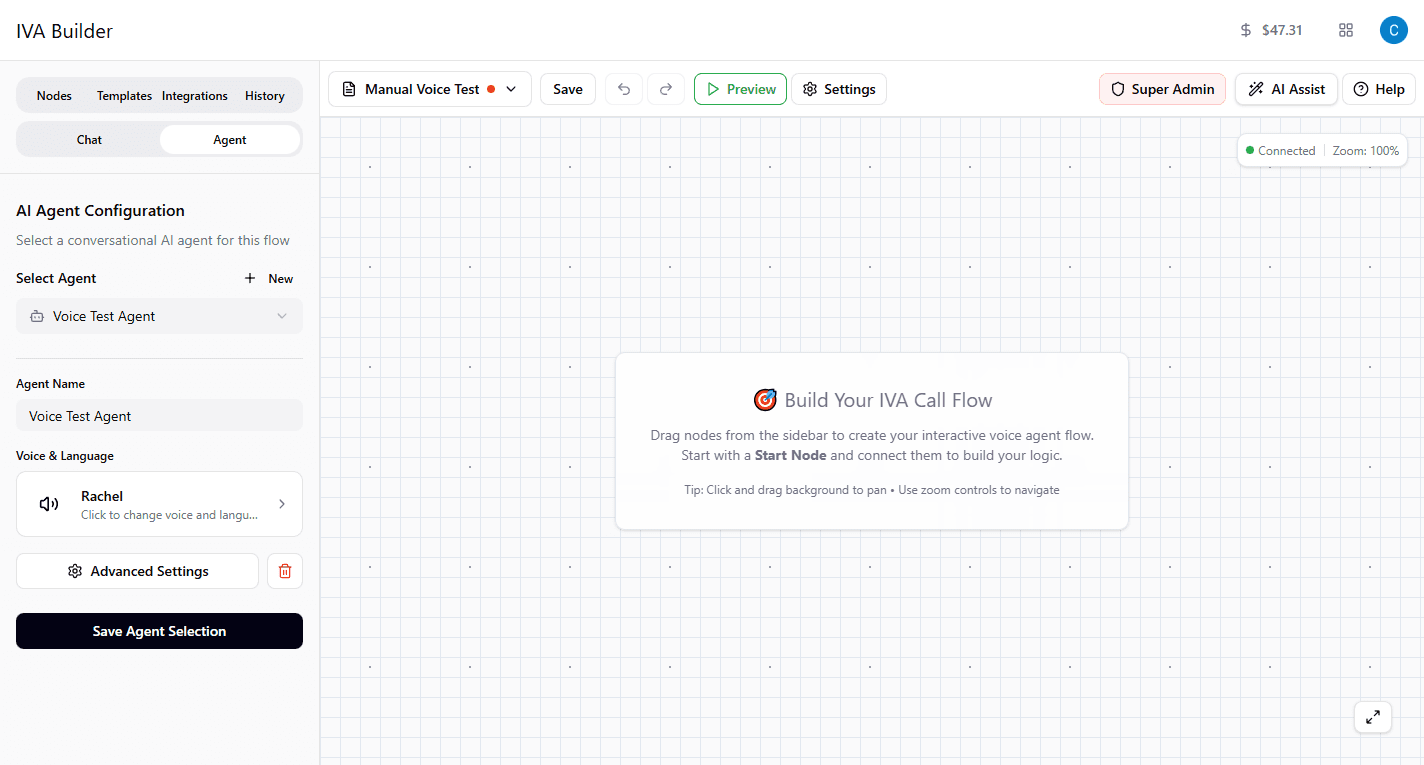
Click the Agent tab in the left sidebar
-
Select your agent or create a new one
-
In the Agent Settings panel, find the Voice Configuration section
-
Click the Voice & Language button to open the voice selector
Selecting Languages
The voice selector uses a two-step process: select languages first, then choose a compatible voice.
Step 1: Choose Your Languages
-
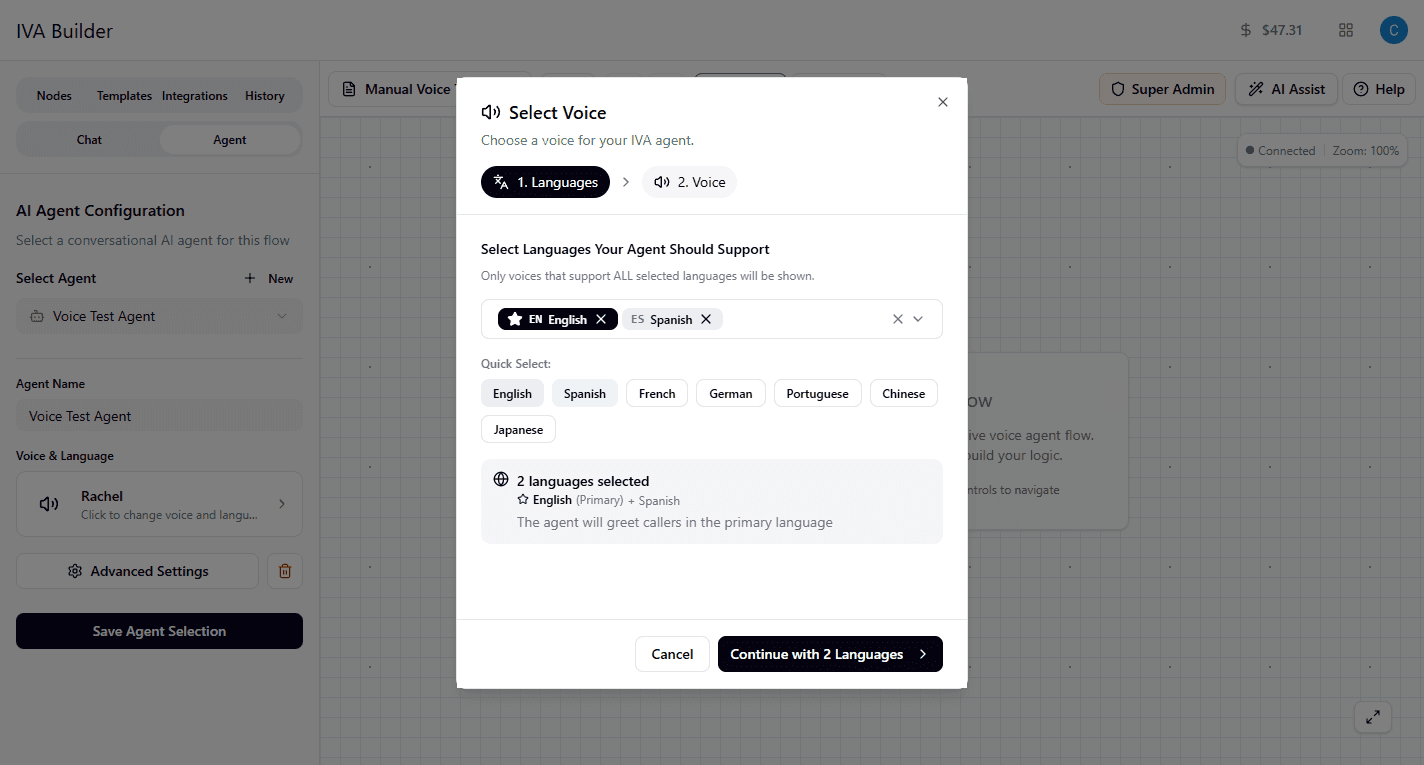
When the voice selector opens, you’ll see the Languages step
-
Select the languages your agent should support:
- Click on a language to add it to your selection
- Use the search box to find specific languages
- Use Quick Select buttons for common languages (English, Spanish, French, German, Portuguese, Chinese, Japanese)
-
The first language you select becomes the Primary Language - this is the language your agent will use for the initial greeting
-
Click Continue to proceed to voice selection
Supported Languages
Flowyte supports 40 languages for multi-language IVA experiences:
Major World Languages (12)
English, Spanish, French, German, Portuguese, Italian, Chinese, Japanese, Korean, Arabic, Hindi, Russian
European Languages (20)
Dutch, Polish, Danish, Czech, Hungarian, Bulgarian, Slovak, Ukrainian, Estonian, Lithuanian, Norwegian, Swedish, Finnish, Greek, Romanian, Croatian, Slovenian, Catalan, Latvian, Hebrew
Asian & Pacific Languages (8)
Turkish, Thai, Malay, Tamil, Telugu, Indonesian, Vietnamese, Filipino
Multi-Language Support
When you select multiple languages:
-
Primary Language: The first language selected becomes the primary. The agent uses this language for:
- The initial greeting when a call connects
- Default responses until the caller’s language is detected
- Fallback language if detection is uncertain
-
Secondary Languages: These are additional languages your agent can handle:
- The AI detects when callers speak a secondary language
- Responses automatically switch to match the caller’s language
- No manual intervention required - switching is seamless
-
Voice Compatibility: Only voices that support ALL selected languages will be shown. This ensures:
- Consistent voice quality across all languages
- Smooth transitions when language switching occurs
- Professional experience for all callers
Tip: For businesses serving diverse populations, select your primary market language first (the one most callers speak), then add secondary languages for minority language speakers.
Selecting a Primary Language
The order matters when selecting languages:
- First language selected = Primary Language - shown with a star badge
- All subsequent selections become secondary languages
- To change the primary language, clear your selection and start over with the new primary first
The primary language determines:
- What language the caller hears first
- The voice’s “default” accent and pronunciation style
- Which language is used if the caller doesn’t speak
Selecting a Voice
Step 2: Choose Your Voice
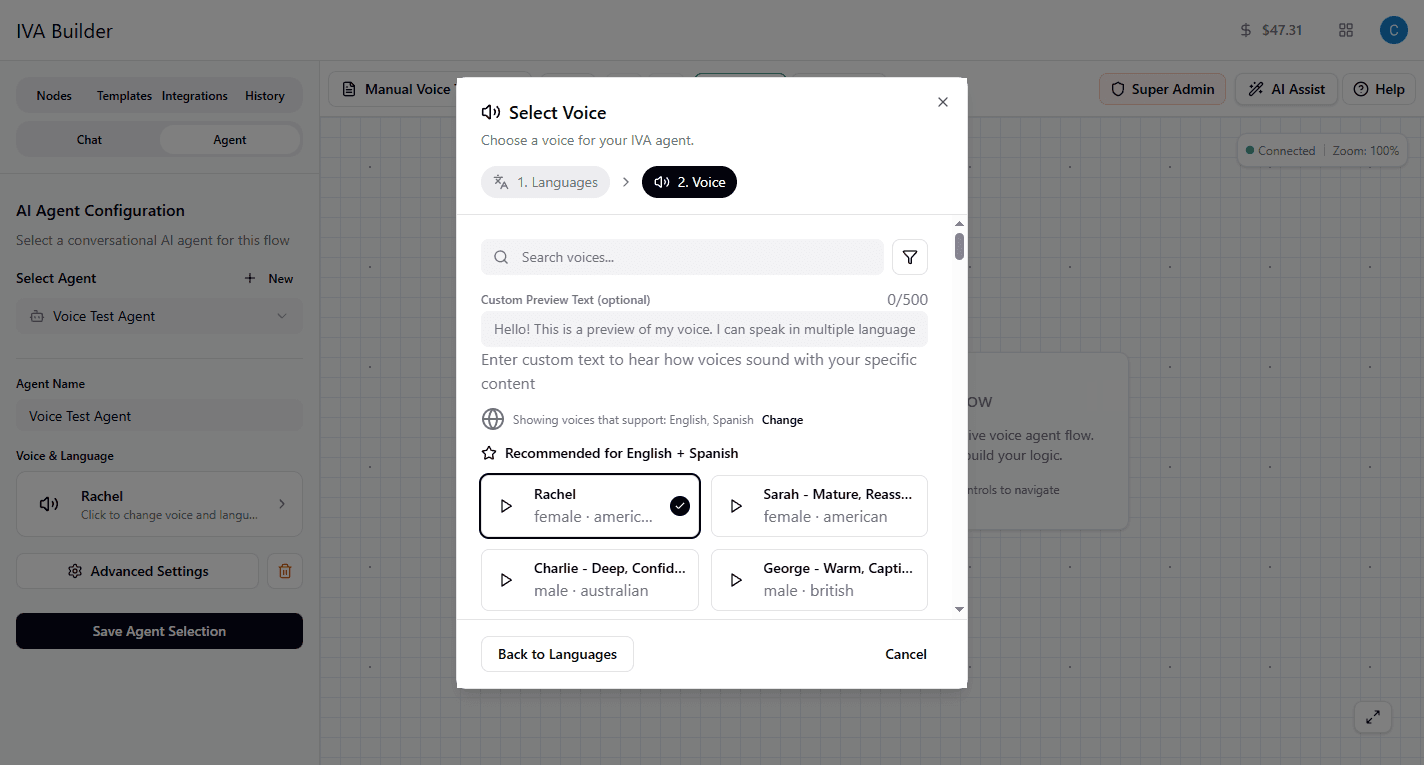
After selecting languages, you’ll see voices compatible with your language selection.
-
Recommended Voices appear at the top - these are popular, high-quality voices for your selected languages
-
Browse the full voice library below, organized in a grid view
-
Preview any voice by clicking the play button on the voice card
-
Use filters to narrow your search:
- Search: Find voices by name, description, or style
- Gender: Filter by male, female, or neutral voices
- Accent: Filter by regional accents (American, British, Australian, etc.)
- Style: Filter by speaking style (calm, energetic, professional, etc.)
-
Click on a voice card to select it
Voice Preview
Before selecting a voice, you can preview how it sounds:
-
Click the play button on any voice card to hear a sample
-
Use the Custom Preview Text field to type your own text and hear how the voice pronounces your specific content
-
Preview text can be up to 500 characters
Tip: Test with your actual greeting message or common phrases your agent will use to ensure the voice sounds natural for your use case.
Voice Characteristics
Each voice card displays:
- Voice Name: The unique identifier for the voice
- Gender: Male, Female, or Neutral
- Accent: Regional accent (e.g., American, British, Australian)
- Style: Speaking style characteristics (e.g., calm, professional, friendly)
- Play Button: Preview the voice with audio
Voice Quality Settings
Fine-tune your selected voice with these advanced settings:
Speaking Speed
Control how fast or slow your agent speaks:
- Range: 0.5x to 2.0x
- Default: 1.0x (normal speed)
- Recommendation: 0.9x - 1.1x for natural conversation
When to adjust:
- Slower speeds (0.8x - 0.95x) for complex information or elderly audiences
- Faster speeds (1.05x - 1.15x) for younger, tech-savvy audiences
Stability
Controls voice consistency and predictability:
- Range: 0% to 100%
- Default: 50%
- Higher values: More consistent, predictable speech
- Lower values: More expressive, varied intonation
When to adjust:
- Higher stability (60-80%) for professional, formal contexts
- Lower stability (30-50%) for more natural, conversational tone
Similarity Boost
Controls how closely the voice matches the original voice sample:
- Range: 0% to 100%
- Default: 85%
- Higher values: Closer match to the original voice
- Lower values: More variation from the original
When to adjust:
- Keep at 80-90% for most use cases
- Reduce if the voice sounds too robotic or artificial
Style Exaggeration (Advanced)
Controls emotional expression in speech:
- Range: 0% to 100%
- Default: 25%
- Higher values: More dramatic, expressive delivery
- Lower values: More neutral, controlled delivery
When to adjust:
- Lower values (10-25%) for professional business contexts
- Higher values (30-50%) for engaging, entertaining content
Speaker Boost (Advanced)
Enhances voice clarity for phone calls:
- Default: Enabled
- Recommendation: Keep enabled for all phone-based IVA systems
This setting optimizes the audio output for telephone audio quality, improving clarity and reducing background artifacts.
Conversation Timing
Configure how your agent handles conversation pacing:
Response Timing
Controls how quickly the agent responds after the caller stops speaking:
| Mode | Description | Best For |
|---|---|---|
| Patient | Waits longer before responding | Complex topics, elderly callers |
| Normal | Balanced response timing | Most use cases |
| Eager | Responds quickly | Fast-paced interactions, younger audiences |
Response Timeout
Maximum time the agent waits for caller input before prompting:
- Range: 5 to 30 seconds
- Default: 15 seconds
- Recommendation: 10-20 seconds for most use cases
Max Call Duration
Maximum length of a single call:
| Duration | Best For |
|---|---|
| 5 minutes | Quick inquiries, simple Q&A |
| 10 minutes | Standard customer service |
| 20 minutes | Complex support scenarios |
| 30 minutes | Detailed consultations |
| 1 hour | Extended support sessions |
Best Practices
Choosing the Right Voice
-
Match your brand: Choose a voice that reflects your company’s personality
- Professional services: Calm, authoritative voices
- Retail/hospitality: Warm, friendly voices
- Tech companies: Modern, clear voices
-
Consider your audience: Select voices appropriate for your caller demographics
- Regional accents may resonate better with local audiences
- Neutral accents work well for international audiences
-
Test extensively: Preview multiple voices with your actual greeting and common phrases
Multi-Language Configuration
-
Start with your primary market: Select the language most of your callers speak first
-
Add secondary languages strategically: Only add languages you expect to encounter
-
Consider voice availability: Some voices support more languages than others. Check compatibility before finalizing.
-
Test in each language: Preview the selected voice speaking in each language you’ve enabled
Voice Quality Tuning
-
Start with defaults: The default settings work well for most use cases
-
Adjust incrementally: Make small changes (5-10%) and test
-
Use preview often: After each adjustment, preview the voice to hear the impact
-
Optimize for phone: Keep Speaker Boost enabled and test audio quality on actual phone calls
Common Questions
Why don’t I see all voices after selecting languages?
When you select multiple languages, only voices that support ALL selected languages are shown. Try selecting fewer languages to see more voice options.
Can I change the primary language?
Yes. Go back to the language selection step and reorder your language selections. The first language in the list becomes the primary language.
How do I know which voice sounds best for phone calls?
Use the voice preview feature with Speaker Boost enabled. This simulates how the voice will sound on actual phone calls.
Can I use different voices for different languages?
Currently, each agent uses one voice that supports all selected languages. For different voices per language, create separate agents for each language.
What happens if a caller speaks a language I haven’t selected?
The agent will attempt to respond in your primary language. For best results, enable all languages you expect your callers to speak.
How does automatic language detection work?
When a call begins, the agent greets the caller in your primary language. As the caller speaks, the AI analyzes their speech in real-time. If a secondary language is detected, the agent automatically switches to respond in that language. This happens seamlessly without any prompts or delays.
Does the voice change when switching languages?
No. The same voice is used throughout the entire call - only the language changes. This is why you can only select voices that support all your enabled languages. The voice maintains its characteristics (accent, tone, speed) while speaking different languages.
What if the caller switches languages mid-call?
The agent handles this smoothly. If a caller starts in English and switches to Spanish, the agent will detect this and switch to Spanish. If they switch back to English, the agent follows. Language detection is continuous throughout the call.
Related Documentation
- Getting Started - Build your first IVA
- Node Reference - Explore all node types
Need Help?
- Documentation: Browse our complete guides for detailed information
- Support: Contact support@flowyte.com for assistance